
Event Tracking is one of the most powerful tracking possibilities in Google Analytics to track the virality of what you produce on your website, blog or web project. With even tracking you can simulate page views in flash files so that you can see the interactivity between your user and your flash file. With Event Tracking you can track clicks on buttons, how long it takes to load a certain element, or as in this example how many people shares your material on social platforms/subscribe to your RSS.
The implementation requires that you have an account on Google Analytics and that you have implemented the ga.js script instead of the legacy urchin.js script in the bottom of your pages.
1. Adding the tracking code
To each of the events you would like to track you should add the following code. (For flash you need to do it a bit differently, but I’ll cover that if you want in later stories.)
onClick=”pageTracker._trackEvent(‘category’, ‘action’, ‘optional label’);”
in a link
<a href=”http://jesperastrom.com” onClick=”pageTracker._trackEvent(‘category’, ‘action’, ‘optional label’);”>Anchor Text</a>
You can choose any type of category, action or optional label that you want. You don’t have to choose a label really, but I find it useful. In this example I set category to what type of button they are clicking. I set action to the type of sharing the button represents and I set the optional label as a dynamic label for the page name.
As I am running a wordpress blogg the following code is the result:
onClick=”pageTracker._trackEvent(‘Subscribe’, ‘RSS’, ‘<?php the_title(); ?>’);”
But you can easily exchange, remove etc. the last part of that code to represent some other label you want to put on that specific action. You can also add a fourth element to your set of data points which is an integer rather than a string. This integer represents the value for load time it takes to perform the requested action. Your code for such an implementation, possibly best used with play, pause, stop buttons for video, is as follows:
onClick=”pageTracker._trackEvent(‘Subscribe’, ‘RSS’, ‘<?php the_title(); ?>’, downloadTime );”
If you choose to set up a tracker for downloads, movie plays, success events such as register buttons or clicks to check out pages (to compare to actual check outs if you have some unexplained drop off), then this works as well. Just change the category and action name to logical labels so that you can find the data in an easy way when you look in your reports.
2. Finding your events
There is an easy way to find the data for the events. Just wait about 24 hrs and a new tab will appear under your Content tab in the left navigation of your Google Analytics account.
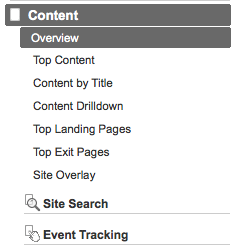
Click the Event tracking tab and it will fold out so that you can see the options within it.
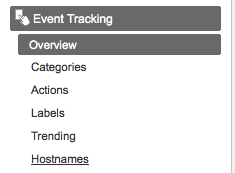
Click around and you’ll find the different things sorted under each category.
3. Setting up a Custom Report
In my other post about Custom Reports in Google Analytics I showed you where to find the custom reports and how to create them. To simplify the drilldown of collected data I like to set one up for this occation. To see how I do that I recommend you to watch the video tutorial below that is also available on my YouTube account.
Possibly related posts:
- Related posts on Event Tracking
- Review of 2009 Hotel Tech News | Jon Inge
- Event Tracking using Google Analytics
- Related posts on Google Analytics
- Adding Google Analytics to your website « Reading Tea Leaves by …
- Internet Marketing Ideas | Advanced Web Metrics with Google Analytics
- Related posts on Google Analytics Event Tracking
- Using Jquery and Google Analytics events to track form abandonment.
- OnCars.com Delivers More Than 33 Million Video Views in 2009 …
Worth pointing out that this if you have migrated to the asynchronous tracking code snippet then the onclick code needs to be a little different…
onclick=”_gaq.push([‘_trackEvent’, ‘Subscribe’, ‘RSS’, “Page Title”]);”
So true! Thnx for that one. I should create a complete one for AS3 as well.. 🙂
Hi Jesper
Thank you for the introduction. The best one I have found in days searching the web for a clear explanation of the magic of event tracking.
Excellent video also. Very instructive.
Does the comment about ga.js mean that your example
a href=”//jesperastrom.com”” rel=”nofollow”Anchor Text/a
is no longer valid?
Google uses both the
onclick=”_gaq.push([‘_trackEvent’, ‘Subscribe’, ‘RSS’, “Page Title”]);”
and the
onClick=”pageTracker._trackEvent(‘category’, ‘action’, ‘optional label’);”
in their examples. And I can’t figure out what the first one means – where you put what.
Can I still use pageTracker?
Best,
Anders
The best thing you can do is to test it out and see if you can pick up clicks. I generally just test my way to success… I would start with pageTracker and see if it works.
Hi again
Thanks for your reply.
I did test it out with the straight forward
onClick=”pageTracker._trackEvent(‘category’, ‘action’, ‘optional label’);”
protocol, and it worked wonders, so I’ll stick with that. 😉
Best,
Anders.
Hi Jesper,
Thanks for the post. Have you had any experience with event tracking causing a plummet in bounce rate for the page? For example, I’ve implemented the code to two sites and bounce rate is now under 1% for the pages that have the code. I know once someone clicks the button or link with the code they are no longer considered a bounce, but does just having the code on the page in the first place cause analytics to interpret more than one page view, eliminating the possibility for a bounce?
They have a quite extensive explanation of what occurs on Google’s own pages about trackEvent.
They write “It’s important to keep in mind that any implementation of Event Tracking that automatically executes on page load will result in a zero bounce rate for the page.”
This is most commonly the case with flash websites or websites where you have a video that launches upon page load. Google bounce rate is quite evil though as they count every visitor that do not visit more than one page as a bouncing visitor.
So, Yes. Just by implementing track event you might end up with an insanely low bounce rate if it is activated upon page load.
I for one have an enormous bounce rate, whilst I have a quite high time on site. Especially, for SEO traffic. For me the conclusion becomes I have relevant articles, but they do not visit more than one page.
I know I’m a bit late commenting here but I figured, what the heck.
As I understand it, Google’s logic is this: If there’s a single page visit but an “event” during that visit then that’s not a bounce. The event signifies an interaction with the site.
As mentioned, an auto-play video (which like auto-play music is usually a UX nightmare anyway) will trigger an event and all but eliminate and bounces.
That being said, if you don’t have an auto-play video but do have (for example) an article with a link to another site and that link is an event, then those who leave because of the link won’t be bounces. Which is true and therefore a positive impact on the analytics.
For reasons I can’t explain I’ve never really gotten into Events – until the last couple months. I can only say I wish I did so sooner. Even if you just event off site links it’s worth it for increasing the accuracy of the bounce rate.
With that said, I have to get back to the jQuery plugin I’m writing to make Event’ing links easier. I’ll worry about video plays and such later.
Thanks for your reply Jesper. Very helpful.
And I wouldn’t be too worried about your bounce rate. As I’m sure you know, it’s very common for blogs. All the good content is right there on the front page!
Thanks again 🙂
If I want to track how many hwo seen a embeded you tube movie on my site, how to do then. I get reports i GA, but not how many hwo has clicked on the play button.
It requires a bit of work, but it is fully possible. What you need to do is to use the YouTube chromeless player. You can find a complete integration description here: http://www.savio.no/blogg/a/53/youtube-chromeless-player-with-google-analytics-event-tracking
Excellent article (Stumbled).
Question: How does Google Analytics know which onclick actions go with that?
For example, in the example you gave above, the category is “Subscribe”. Does that mean my Event Title in GA needs to be “Subscribe”?
Thanks.
It does it automatically based on the titles you give it. As soon as you call the trackEvent they know that they should track the string values you put in there. So. If you in the future use Subscribe then it will track it as another Subscribe event.
That is why you need to use all three parameters. That way you’ll be able to see which goes where. 😀 don’t know if I explained that in any good way.
//J.
Think I got it. I went ahead and created new Events and then inserted the onclick action in my href’s, but I still don’t see any analytics (even though I’m viewing today’s date).
I’ll wait and see if it comes around tomorrow.
One thing though… my links already have one onclick= in them. It’s for an e-junkie product I’m selling. I’m trying to track how many people:
A) click the “Purchase Now” button
B) of the people who click that, what website did they come from
Is this the kind of tracking I should be looking at?
Thanks.
Hey John,
I’ll think I’ll create a video for that one :). That is a normal case and you can create such a report from custom reports. It is a good post and I think I’ll have to write it but in order to actually show you how to do the different things, I think I am better off showing it in a video. So… I’ll post something later on this week about it.
Cheers!
Thanks Jesper. I know what you mean about how simply creating a video would be easier, I do that sometimes as well.
I look forward to the video.
Hi Jesper,
You should check your tracking on your SM buttons here in the right column, in the “Find Me” section. 🙂
Code:
pageTracker._trackEvent(‘FindMe’, ‘LinkedIn’, ”);
Oops!
WordPress removed my php tags in my comment so what I was trying to say is that you have php code on your tracking that’s not rendered by the server.
Thnx m8! I haven’t checked those things in ages 😀
I need to invent a warp system to get more time for this blog. Client time is prioritized right now. I want to redesign it and build it HTML5 ready as well… hmm… all these dreams.
Once again. Thank you for the update I’ve put it on the list of things to do!
Cheers,
Jesper
Hi,
I have a video on vzaar that us linked from my website. Can I track the video via these instructions. I understand you can see how many times, viewed, how far into it did a person watch, etc.. etc..
Thanks
M
Hi Jespar,
I am having trouble with the code.
I’m trying to track a button click that reveals a phone number.
Phone: Click to Show
(08) 8250 0022
$(“button”).click(function () {
$(“p”).show(“slow”);
});
Not sure as to where to put the tracking code.
When I do try to throw it in somewhere, Business Catalyst likes to eat up some of the code and vomit it back out.
Thanks for your help!
Hi !
I need help !
do you know how many max characters are available in each variable in :
_gaq.push([‘_trackEvent’, category, action, opt_label, opt_value])
category : max characters lenght ?
action : category : max characters lenght ?
opt_label : max characters lenght ?
opt_value : max characters lenght ?
with _setCustomVar it’s 64 bytes max (how many characters ?)
but with _trackEvent ??
thx,
DigitalCoder